Loading shader...
Drag to rotate • Scroll to zoom
Loading shader...

Volume Shader BenchmarkHow Fast Can Your GPU Render Volume Shader?

Presets
Desktop Mode
Balancedâ–Ľ
ℹ️
Device-Specific Presets

Preset parameters are optimized for your device type. Mobile devices use lighter settings to ensure smooth performance, while desktop PCs use higher quality settings.

Advanced Settingsâ–Ľ
Rendering API

Choose graphics API for rendering

Kernel Iterations: 2

Controls fractal detail level. Higher values create more intricate patterns but require more GPU processing power.

Step Size: 0.0100

Sampling stride along the ray. Lower values produce more accurate surface detection but significantly impact performance.

Resolution Scale: 0.75x

Renders at scaled resolution relative to canvas size. Higher values produce sharper images but increase GPU workload.

Max Ray Steps: 1000

Maximum rays traced per pixel (higher = deeper volume)

Bisect Iterations: 8

Surface refinement iterations (higher = more accurate)

Zoom: 1.35x
Environment & Performance
API: WebGL
Browser: Unknown
GPU: Unknown
OS: Unknown
Backend: Unknown
Performance Metrics
FPS (avg): --
Frame (ms): --
FPS min: --
FPS max: --

🏆 Volume Shader Benchmark Hall of Fame

The fastest GPUs running our volume shader stress test. These machines push the limits of volumetric rendering performance.

Powerful Volume Shader Benchmark Features

Everything you need to stress test your GPU with cutting-edge volumetric rendering technology. Our volume shader benchmark delivers accurate, real-world performance metrics.

Real-Time GPU Benchmarking

Test your graphics card with our advanced volume shader stress test. Monitor FPS, frame time, and stability in real-time as your GPU renders complex volumetric effects.

WebGL & WebGPU Support

Run the volume shader benchmark using either WebGL 2.0 for maximum compatibility or the cutting-edge WebGPU API for next-generation performance testing.

Cross-Platform Compatibility

Whether you're on Windows, macOS, Linux, or even mobile devices, our volume shader test works seamlessly in any modern browser without installation.

Global Leaderboard

Submit your volume shader benchmark results and compare your GPU performance against thousands of users worldwide. See how your hardware ranks globally.

Detailed Performance Metrics

Get comprehensive statistics including average FPS, min/max frame rates, stability percentages, and performance scores to fully understand your GPU's capabilities.

Multiple Stress Test Modes

Choose from Lite, Standard, or Inferno modes to control the intensity of the volume shader stress test. Push your GPU to its absolute limits with Inferno mode.

How the Volume Shader Benchmark Works

Testing your GPU with our volume shader stress test is simple. Follow these three easy steps to benchmark your graphics card and join the global leaderboard.

Volume shader benchmark workflow: Launch, Monitor, Compare
01

Launch the Volume Shader Test

Click the "Start Benchmark" button to begin the volume shader stress test. Choose from Lite, Standard, or Inferno mode based on how hard you want to push your GPU.

02

Watch Real-Time Performance

As the volume shader renders complex 3D fractals, monitor your GPU's real-time FPS, frame timing, and stability metrics. The test runs for approximately 60 seconds.

03

Compare Your Results Globally

Submit your volume shader benchmark score to our global leaderboard. See how your GPU ranks against thousands of other systems worldwide and share your results.

Understanding Your Volume Shader Benchmark Results

Learn what your volume shader benchmark metrics mean and how to interpret GPU stress test performance data.

FPS (Frames Per Second)

Higher is better

Measures how many frames your GPU can render during the volume shader test. 60+ FPS indicates smooth ray marching performance, while lower values show hardware limits under heavy GPU benchmark load.

Frame Time (ms)

Lower is better

Time taken to render a single volume shader frame in milliseconds. Under 16.7ms needed for 60 FPS; under 33.3ms for 30 FPS. High frame times indicate GPU stress test bottlenecks.

Min/Max FPS (Stability)

Closer together is better

The range between your lowest and highest FPS during the volume shader benchmark. A narrow gap indicates stable GPU performance. Wide gaps may suggest thermal throttling during ray marching.

đź’ˇ Volume Shader Benchmarking Tips

  • •Close other applications to free GPU resources for accurate ray marching benchmark results
  • •Run the GPU stress test multiple times—initial runs may be slower due to volume shader compilation
  • •Compare GPU benchmark results using the same preset to ensure fair comparison

Why Use the Volume Shader Benchmark?

Understand the technology behind our GPU stress test and why volume shader rendering is the ultimate measure of graphics performance.

Volumetric 3D fractal rendering demonstrating volume shader technology

What is a Volume Shader?

A volume shader is a specialized rendering technique that simulates how light interacts with semi-transparent, three-dimensional materials like fog, smoke, clouds, and fire. Unlike surface shaders that only calculate color at object boundaries, volume shaders use ray marching algorithms to sample density and lighting throughout a 3D space.

This makes volume shader rendering extremely GPU-intensive, as the graphics card must perform thousands of calculations for every pixel on screen. That's why our volume shader benchmark provides such an accurate measure of your GPU's real-world performance—it tests the same rendering techniques used in modern games and professional 3D applications.

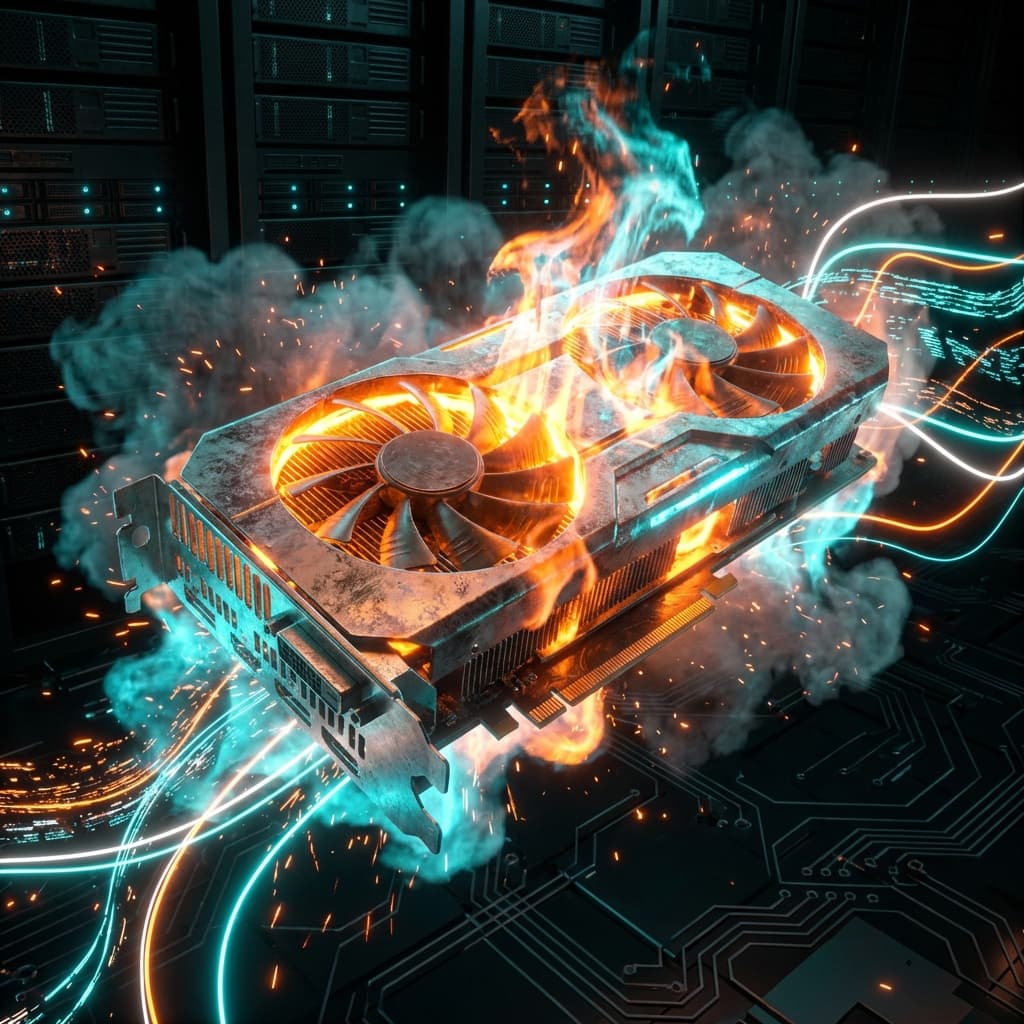
GPU graphics card under intense stress test with glowing effects

Volume Shader: Stress Your GPU to the Limit

Our volume shader stress test pushes your graphics card to its absolute limits. By rendering complex Mandelbulb fractals with real-time ray marching, we create a sustained heavy workload that reveals your GPU's true performance capabilities.

Whether you're a gamer wanting to verify your hardware before buying a demanding new title, a professional 3D artist optimizing your workstation, or an enthusiast overclocking for maximum performance, the volume shader benchmark gives you reliable, comparable metrics. Detect thermal throttling, identify driver issues, and understand exactly how your GPU performs under pressure.

Your Privacy with Volume Shader

Your privacy matters. Here's exactly what data our GPU benchmark collects when you submit volume shader test results—and what we don't.

Data We Collect

  • âś“GPU model name and WebGL/WebGPU rendering capabilities
  • âś“Volume shader benchmark metrics (FPS, frame time, stability)
  • âś“Ray marching test configuration (kernel iterations, step size)
  • âś“Screen resolution and browser type for GPU stress test accuracy
  • âś“Benchmark session timestamp

Data We Don't Collect

  • âś—Personal identifiers or user accounts
  • âś—IP addresses or location data
  • âś—Browser history or tracking cookies
  • âś—System serial numbers or unique IDs
  • âś—Any personally identifiable information

All volume shader benchmark data submission is voluntary and anonymous. Your exported GPU test results (CSV/JSON) remain completely private on your device. We use collected ray marching benchmark data solely to improve GPU compatibility insights for the community.

Frequently Asked Questions about
Volume Shader

Common questions about our volume shader GPU benchmark and troubleshooting tips.

Low frame rates during the volume shader benchmark are completely normal—that's actually what we're measuring! The test is designed to push your GPU to its limits by rendering complex volumetric 3D fractals. Lower FPS simply indicates your GPU's maximum sustainable performance under heavy load. Compare your results on the leaderboard to see if your score is typical for your graphics card model.
This is a common issue on laptops and systems with both integrated and dedicated graphics. Browsers often default to the power-efficient integrated GPU. To fix this: • Windows: Go to Settings → Display → Graphics, add your browser, and select "High Performance" • NVIDIA: Open NVIDIA Control Panel → Manage 3D Settings → Add your browser → Select "High-performance NVIDIA processor" • AMD: Open Radeon Settings → Gaming → Add your browser → Set Graphics Profile to "High Performance" • Chrome: Visit chrome://gpu to verify which GPU is being used
Ray marching is the core algorithm behind volume shader rendering. Unlike traditional rendering that calculates color at surface intersection points, ray marching "steps" along each viewing ray, sampling the volume at regular intervals. At each step, it accumulates color, density, and lighting information. This iterative process creates realistic volumetric effects like fog, clouds, and smoke, but requires significant GPU processing power—which is why volume shader benchmarks are excellent stress tests.
Our volume shader benchmark provides a real-world measure of GPU performance for graphics-intensive workloads. Unlike synthetic benchmarks that test isolated features, we stress multiple aspects simultaneously: shader core utilization, memory bandwidth, cache efficiency, and thermal behavior. While no single benchmark tells the whole story, our results correlate well with performance in modern games and 3D applications that use volumetric effects.
Yes! Our volume shader test is fully browser-based and works on any device with a modern web browser that supports WebGL 2.0. Mobile GPUs will naturally score lower than desktop graphics cards, but you can still compare your mobile device against others in our mobile-specific leaderboard category. Note that running the benchmark may cause your device to heat up—this is normal for GPU stress tests.
The three modes control the intensity of the volume shader stress test: • Lite: Lower resolution and fewer ray marching steps. Good for older or mobile GPUs. • Standard: Balanced settings for typical desktop graphics cards. Recommended for most users. • Inferno: Maximum quality with highest ray marching iterations. Only for high-end GPUs. Will cause significant heating and may trigger thermal throttling on less capable systems. Your score is adjusted based on the mode, so Inferno results are weighted higher on the leaderboard.

Ready to Benchmark Your GPU with Volume Shader?

Run our volume shader stress test now and discover your GPU's true performance. Compare your results against the global leaderboard and see how your hardware stacks up.

âś“ No installation requiredâś“ Works in any browserâś“ 100% free to use